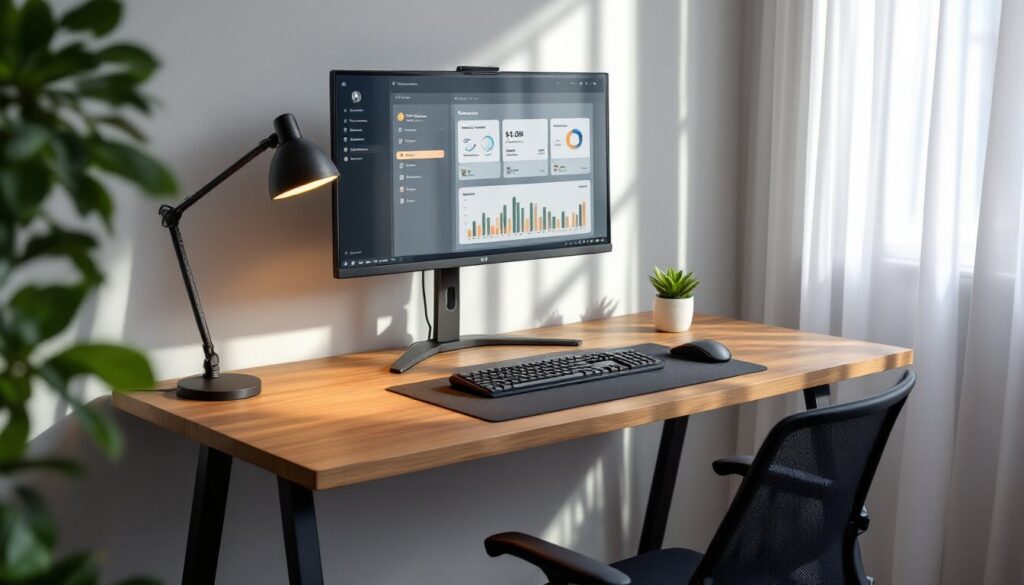

Setting up a home office desk isn’t just about plopping down a table and laptop. A poorly planned workspace leads to neck strain, tangled cables, and afternoon fatigue that tanks productivity. The right desk setup, properly sized, equipped, and arranged, makes an eight-hour workday feel manageable instead of punishing. This guide walks through choosing furniture, positioning equipment ergonomically, managing clutter, and fine-tuning lighting so the workspace actually works. No fluff, no mood boards, just practical decisions that solve real problems.
Table of Contents
ToggleKey Takeaways
- A proper home office desk setup prevents neck strain, back pain, and productivity loss by combining the right furniture, equipment, and ergonomic positioning.
- Choose desk size based on available space and work style—48-inch desks fit tight rooms, while 60-inch or L-shaped desks work better for dual monitors or detailed tasks.
- Monitor height should align with eye level, screens positioned 20–26 inches away, and keyboards at elbow height to follow OSHA ergonomic standards and prevent repetitive strain injuries.
- Cable management through grommets, trays, and sleeves keeps your workspace clear and prevents tangled cords from disrupting productivity and creating trip hazards.
- Proper lighting with adjustable desk lamps and monitor backlighting reduces eye fatigue more effectively than overhead fixtures alone.
- Invest in an ergonomic office chair with adjustable height and lumbar support ($150–$300) rather than cheap alternatives that flatten within months.
Choosing the Right Desk for Your Space and Work Style
Desk selection comes down to three factors: available floor space, work activity, and storage needs.
For tight rooms, a 48-inch by 24-inch desk provides enough surface for a monitor and keyboard without dominating the floor. If the user runs dual monitors, edits video, or spreads out paperwork, a 60-inch or L-shaped desk prevents constant shuffling. Measure the room corner-to-corner before buying, standard doorways are 32 inches wide, and desks over 60 inches often won’t fit through without disassembly.
Standing desks suit users who alternate posture throughout the day. Electric models adjust faster than manual crank versions, but they cost $400–$800 versus $200–$350 for crank styles. Not every user needs the option: if someone sits comfortably for hours with proper lumbar support, a fixed-height desk works fine and saves money.
Desktop thickness matters. Desks with 1-inch particleboard tops sag under monitor arms or heavy equipment within a year. Look for 3/4-inch plywood or solid wood construction, or go with commercial-grade laminate at least 1 inch thick. If mounting a monitor arm, check that the desk edge can accommodate a C-clamp, some glass or thin metal desks can’t handle the load.
Built-in storage (drawers, shelves) eats into legroom. A separate filing cabinet or wall-mounted shelves often provide better ergonomics than a bulky desk with built-in hutches that force the user to sit farther from the work surface.
Essential Equipment Every Home Office Desk Needs
Start with the non-negotiables:
- Computer or laptop: Desktop systems offer easier upgrades: laptops save space but require external peripherals for ergonomic setups.
- Monitor (or two): A single 24- to 27-inch display reduces neck strain compared to hunching over a laptop screen. Dual monitors work well for research-heavy tasks but demand at least 60 inches of desk width.
- Keyboard and mouse: Wireless models clear cable clutter: wired options eliminate battery changes. Mechanical keyboards last longer than membrane styles but click louder, worth considering in shared spaces.
- Desk lamp: Overhead lighting alone causes screen glare and eye fatigue. A lamp with adjustable color temperature (3000K–5000K) lets users match natural daylight.
- Surge protector or UPS: Power strips without surge protection won’t save electronics during a spike. An uninterruptible power supply (UPS) gives 10–15 minutes to save work during outages, critical for areas with unstable grids.
- Headset or external speakers: Built-in laptop audio doesn’t cut it for video calls. A USB headset eliminates echo on conference calls.
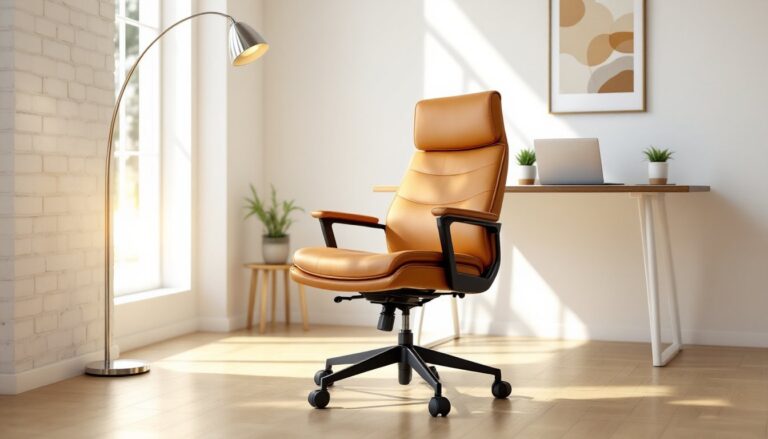
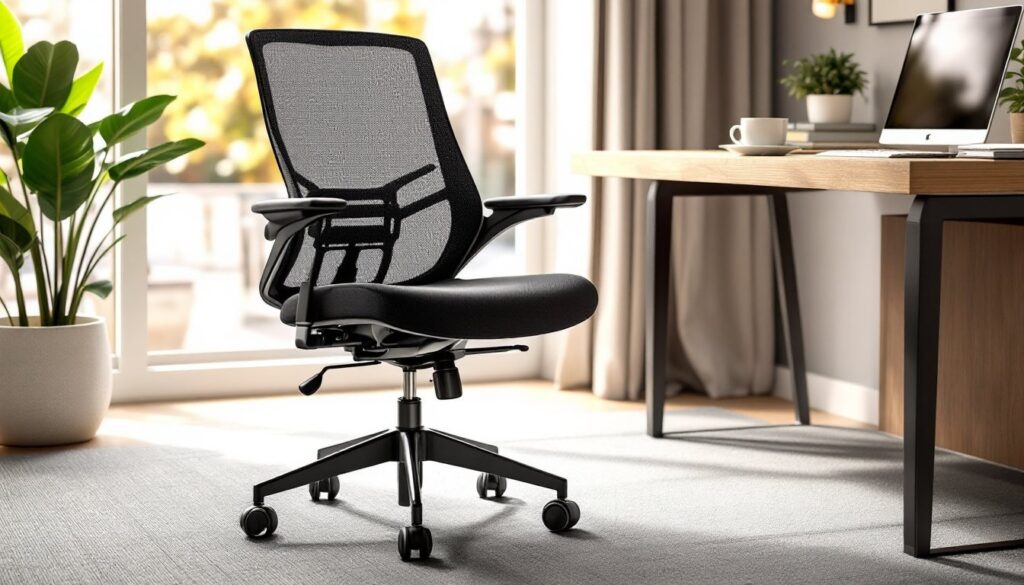
Office chair: The desk won’t matter if the chair causes back pain. Look for adjustable seat height (16–21 inches), lumbar support, and armrests that slide out of the way. Mesh backs breathe better than foam in warm climates. Budget $150–$300 for a chair that lasts: $60 big-box models flatten within six months.
Skip gimmicks like treadmill desks or balance ball chairs unless the user has already tested them elsewhere. Most people can’t focus while walking at 1.5 mph, and balance balls provide zero lumbar support.
Ergonomic Setup: Positioning Your Monitor, Keyboard, and Chair
Ergonomics prevent repetitive strain injuries and chronic pain. Here’s how to set up the workspace correctly:
Monitor height: The top of the screen should sit at or slightly below eye level when the user sits upright. If the monitor’s too low, stack it on a riser or a ream of printer paper. If too high, lower the desk or raise the chair and add a footrest. For dual monitors, angle them in a slight arc so the user pivots at the neck, not the torso.
Monitor distance: Position the screen 20–26 inches from the eyes, roughly arm’s length. Sitting closer causes eye strain: farther forces squinting. Users over 40 or those with progressive lenses may need screens closer or tilted to reduce head movement.
Keyboard and mouse placement: Both should sit at elbow height with forearms parallel to the floor. Wrists stay neutral, no upward or downward bending. If the desk is too high, a keyboard tray that mounts underneath solves the problem. Avoid wrist rests unless the user’s hands hover while typing: resting palms during active typing compresses nerves.
Chair adjustments: Set seat height so feet rest flat on the floor (or footrest) and thighs are parallel to the ground. Lumbar support should press into the lower back curve, not the mid-back. Armrests should allow shoulders to relax without shrugging or slouching.
Distance from desk edge: Sit close enough that elbows stay near the torso when typing. Leaning forward to reach the keyboard fatigues shoulders and upper back within hours.
These positions aren’t preferences, they’re based on OSHA and ANSI/HFES 100 ergonomic standards. Ignoring them leads to carpal tunnel, neck strain, and lower back pain that compounds over months.
Cable Management and Organization Solutions
Loose cables tangle, collect dust, and pull equipment off the desk when someone stands up too fast. Fix it before it becomes a daily frustration.
Desk grommets: Drill a 2- to 3-inch hole in the desktop (if it’s wood) and install a cable grommet. Cords drop through the hole to a power strip mounted underneath the desk with industrial Velcro or screws. This keeps the desktop clear.
Cable trays or raceways: A wire basket tray screws to the underside of the desk and holds power strips, excess cable slack, and adapters. Cost: $15–$30. Alternatively, adhesive cable raceways stick along the wall or desk leg to guide cords out of sight.
Cable sleeves: Zip multiple cords into a neoprene or fabric sleeve so they run as one thick bundle instead of six tangled strands. Costs under $10 for a 6-foot sleeve.
Velcro ties or reusable zip ties: Secure coiled excess cable every 12 inches. Don’t use metal twist ties, they nick insulation and create shorts.
Label cables: Use a label maker or masking tape to mark each plug. When troubleshooting or upgrading, it saves 15 minutes of tracing cords.
Power strip placement: Mount the power strip under the desk or on the wall, not on the floor where it collects dirt and liquid spills. Choose strips with at least 1,080 joules surge protection for computers and monitors.
Run cables along the back desk edge or down a leg, never across open floor space where they’re a trip hazard. If cables must cross a walkway, use a rubber cord cover rated for foot traffic.
Lighting and Accessories That Boost Productivity
Lighting affects focus, eye strain, and mood. Overhead fixtures alone create harsh shadows and screen glare.
Desk lamp: Position it opposite the dominant hand (left side for right-handed users) so it illuminates the work surface without casting shadows. LED lamps with adjustable color temperature let users switch from cool daylight (5000K–6500K) for detail work to warm light (3000K) during evening hours. Lamps with a dimmer prevent overexposure in small rooms.
Monitor backlight bias: A USB-powered LED strip placed behind the monitor reduces eye strain by balancing screen brightness with ambient light. Cost: $10–$20. This matters more in dim rooms or during night shifts.
Natural light management: If the desk faces a window, glare washes out screens. Rotate the desk 90 degrees so the window sits to the side. Use blackout or cellular shades to control midday brightness without eliminating natural light entirely.
Accessories that actually help:
- Document holder: Clips papers at eye level next to the monitor so the user doesn’t hunch over a desk to read.
- Monitor riser with storage: Elevates the screen and creates a shelf for notebooks, charging cables, or a wireless keyboard.
- Desk pad or mat: Protects the surface from scratches and coffee rings. Leather or felt pads also reduce mouse friction.
- Cable clips: Stick to the desk edge to hold charging cables within reach instead of letting them slide to the floor.
Skip decorative clutter. A plant or photo is fine: twelve knickknacks are dust collectors that shrink usable workspace.
Personalizing Your Desk Setup Without Sacrificing Functionality
Personalization doesn’t mean cluttering the desk with decorations. It means tailoring the setup to specific workflows and preferences.
Workflow-driven layout: Graphic designers need a drawing tablet within easy reach: writers need reference books or notepads nearby. Place frequently used items in the primary work zone, the 18-inch radius directly in front of the chair. Everything else goes on shelves, in drawers, or on wall-mounted organizers.
Acoustic treatment: Hard-surfaced rooms echo during video calls. A fabric wall panel, heavy curtain, or acoustic foam square (12-inch by 12-inch, mounted behind the desk) dampens sound without major renovation.
Color psychology (or not): Some users claim blue walls boost focus: others find it irrelevant. If repainting the office, choose matte or eggshell finishes instead of glossy, they reduce screen reflections.
Personal touches that don’t interfere: A framed photo or small plant fits on a corner shelf. A motivational quote on the wall is fine. Just don’t let decor creep into the typing zone or block monitor sightlines.
Tool accessibility: Keep a small toolkit (screwdriver set, cable tester, spare batteries) in a desk drawer. When a monitor cable loosens or a keyboard dies, fixing it immediately beats waiting for a trip to the store.
Seasonal adjustments: Summer heat calls for a desk fan: winter drafts might require a small space heater aimed at feet. Both should sit on the floor, not the desk, to preserve workspace.
Conclusion
A functional home office desk setup solves problems before they start: ergonomic positioning prevents pain, cable management eliminates tangles, and proper lighting reduces eye strain. Choose furniture based on actual work needs, not trends. Position equipment according to ergonomic standards, not convenience. And keep the workspace clean, clutter kills focus. These aren’t optional tweaks: they’re the difference between a desk that works and one that causes daily frustration.